Hi there. Today’s article is about project and task management tools.
Over the past decade, I’ve seen a surge of new tools in this field. While the intense competition for market share seems to have calmed down a bit recently, it’s still undoubtedly a fiercely contested field. Also, the integration of AI has been advancing in recent years.
So, what tools do you use for project and task management?
In my work, which includes web production, video production, and promotional support, project and task management tools are essential for my daily operations.
Modern tools come equipped with a wide array of features, such as document management, automation, whiteboards, and mind mapping. When used effectively, they can lead to significant improvements in efficiency.
Many of today’s tools are versatile enough to be applied across various business areas, including HR, recruitment, administration, and sales, depending on how they are utilized.
In this article, I’ll introduce three project and task management tools that offer free plans and can be used for a variety of purposes.
Additionally, I’ll share some effective ways to use these tools beyond project and task management. Hopefully, this will serve as a helpful guide for improving your workflows.
Asana was founded by Dustin Moskovitz, co-founder and former Chief Technology Officer of Facebook, and software engineer Justin Rosenstein, with its service launching in 2012.
The platform was quickly localized into Japanese in an early phase, and many Japanese companies have since adopted it.
I started using Asana’s free plan around 2015 and continued to use it for both personal and professional tasks until around 2021.
I currently primarily use ClickUp, which I’ll explain later. The reason I switched was that, at the time, Asana’s free plan did not offer two-factor authentication. However, now it is available even on the free plan!
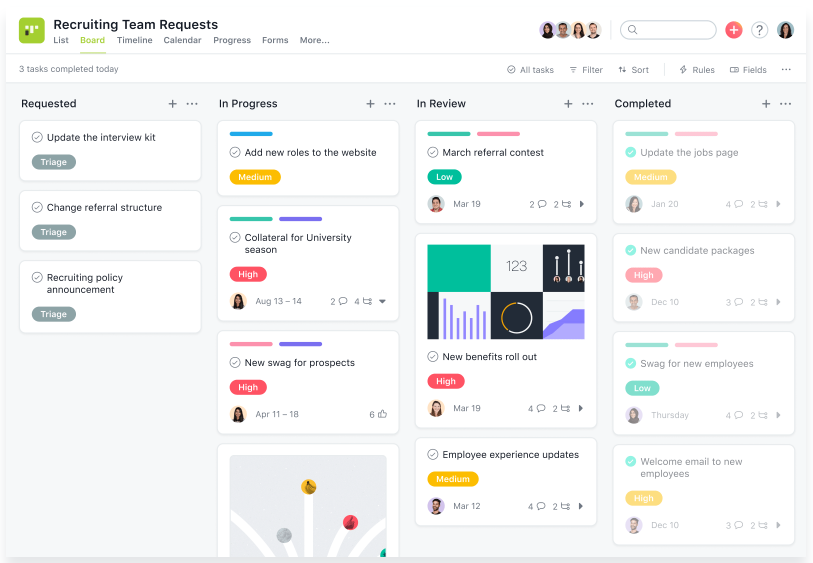
One of the great things about Asana is that even the free plan offers a wide range of features, making it more than sufficient for small-scale projects.
Even with the free version, you can access the following features:
Even with the free plan, you get unlimited access to projects, tasks, and surprisingly, even file storage.
You can also switch between three different task display formats: list view, board view (Kanban style), and calendar view.
One of the standout points is that it’s intuitive enough to use without needing to watch any tutorials.
For mid- to long-term projects, however, the calendar view alone might not provide enough of an overview, and you may find yourself wanting a Gantt chart. In that case, you would need to upgrade to a paid plan.
Previously, a tool called Instagantt (a foreign-made tool) allowed you to create Gantt charts from Asana projects for free, but it seems that the free version of this tool is no longer available. For your reference, here’s a link to this tool.
By upgrading to the paid version, not only do you gain access to the Timeline view, but you can also use custom fields and workflow automation. This enables you to manage more complex projects and further streamline your work processes.
For more detailed information about Asana, please refer to the article linked below.
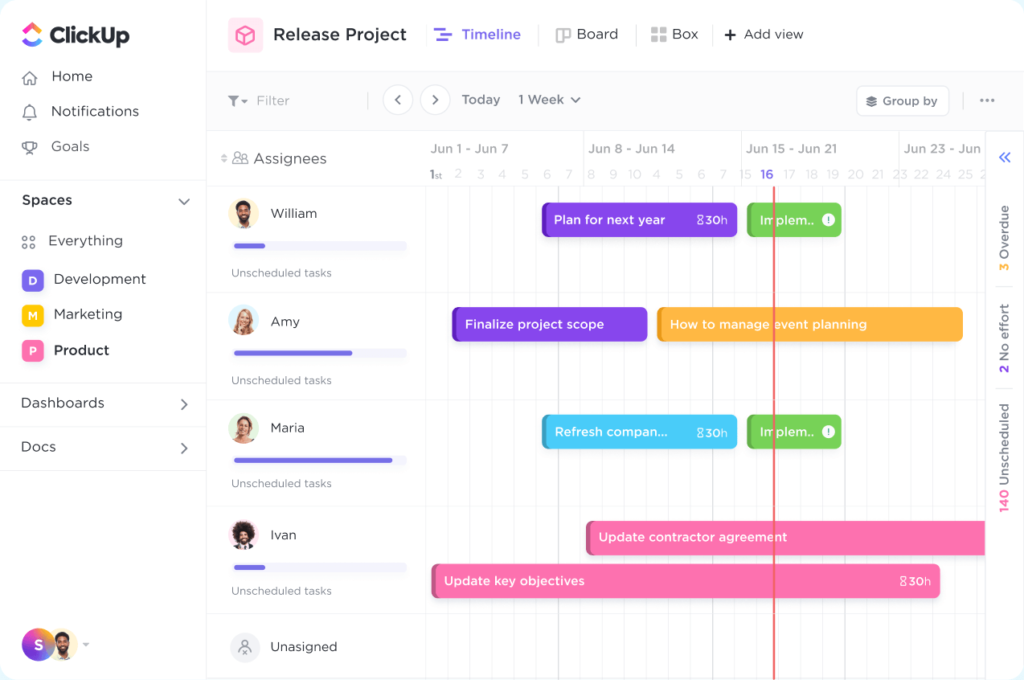
Source : ClickUp™ – View your work, your way. (https://clickup.com/features/views)
ClickUp is a software that launched in 2017. While it excels in project and task management, it offers a wide range of features, making it more fitting to call it a “Work OS” that can manage various business operations, which has garnered a lot of attention in recent years.
I came across ClickUp around 2020 while searching for an alternative, as Asana’s free version didn’t offer two-factor authentication at that time.
As of now, Asana also offers two-factor authentication on its free version.
I started using ClickUp because it also allows you to import projects and tasks from Asana, and the free version offers nearly the same features, making it an easy switch.
Since I started using ClickUp in 2020, many new features have been released, including document management similar to Notion. It’s very user-friendly, and its growth has been incredibly fast.
At first, I was using ClickUp alongside Asana for testing, but now I primarily use ClickUp’s Business plan for task management.
I used to be on the Unlimited plan, but as I started utilizing more features such as unlimited whiteboards, timeline views, time tracking reports, and more, I’ve now upgraded to the Business plan.
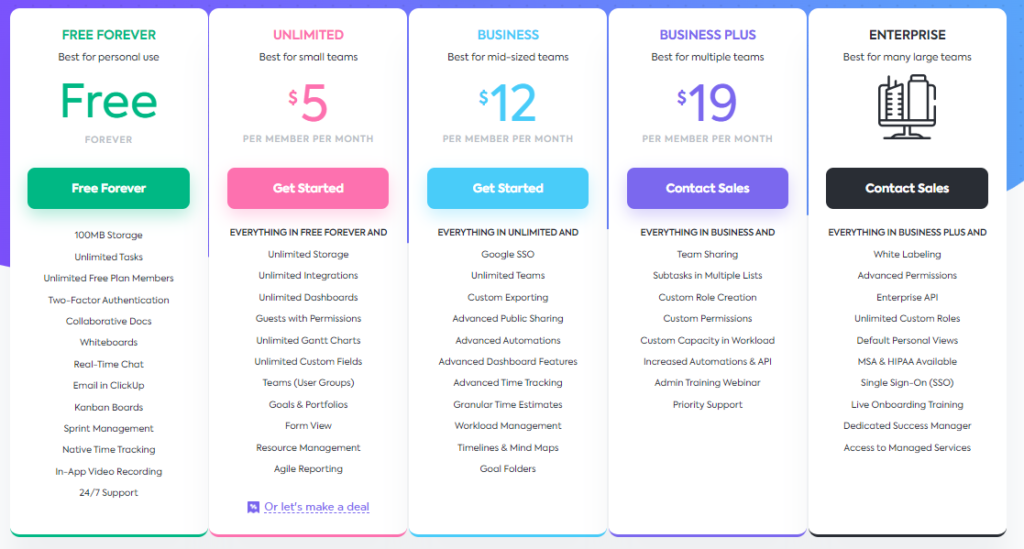
One great point is that the paid plans start at just $5 per month.
Source : The best work solution, for the best price. (https://clickup.com/pricing)
One of ClickUp’s key features is that it doesn’t just offer the typical project and task management functions, but also includes tools like document management similar to Notion, whiteboard functionality, and mind maps. It consolidates many tools that are commonly used in daily work.
The document feature, in particular, is a favorite of mine, as it allows you to create documents using markdown, similar to Notion, and is very user-friendly.
Unfortunately, as of the time of writing, ClickUp has not yet been localized into Japanese. However, given its rapid growth, I expect it will support Japanese in the near future.
For more detailed information on ClickUp, please have a look at the article linked below.
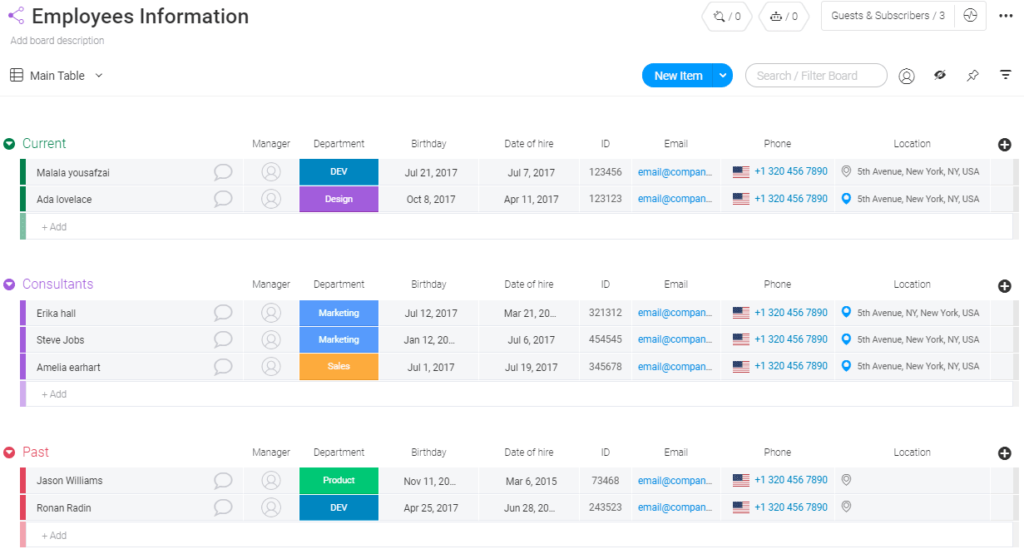
Source : Employees Information Template | monday.com (https://monday.com/templates/employees-information)
monday.com launched its service in 2014, but I believe it started gaining significant attention only more recently.
In July 2019, the company raised $150 million, based on a valuation of $1.9 billion, and that was around the time I first heard of the service. I think I came across it through YouTube video ads.
monday.com describes its service as a “Work OS.” Just as operating systems (OS) like Windows or Mac serve as the core of a computer, monday.com aims to be a core system for business operations.
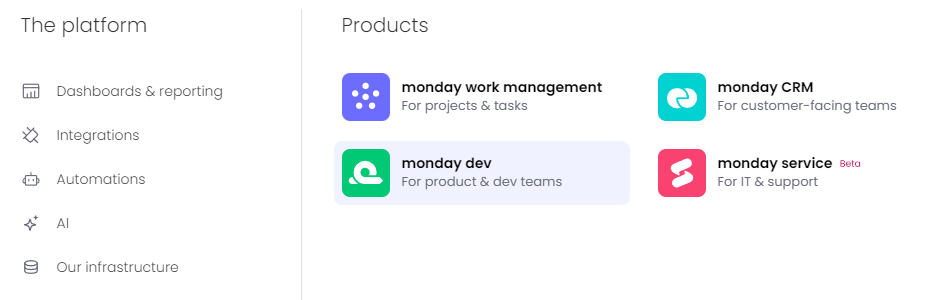
Similar to ClickUp, monday.com offers features like whiteboards and document management, and it also allows you to add specialized features for different uses, such as marketing, CRM, and system development.
Source : The Work Management Software To Maximize Business Efficiency (https://monday.com/work-management)
In terms of features, monday.com may offer the most out of the tools introduced here. However, since all software continues to evolve, the differences aren’t too significant.
While monday.com is similar to other project and task management tools in what it can do, it stands out for its ease of creating custom fields. It feels like a more advanced, user-friendly, and versatile version of Excel.
A key advantage is that it can be used in Japanese as well.
I’ve used it experimentally for managing digital assets and tracking KPIs on several projects.
For more detailed information on the product, please check the article linked below.
I described monday.com as a versatile version of Excel in the above paragraph, but if you’re looking for a tool that feels even more like Excel, Airtable is worth mentioning.
If you’ve used Excel’s Lookup functions or managed data by linking multiple sheets, you might find Airtable appealing, as it offers a similar conceptual workflow while also allowing you to create apps.
I’ve written a summary about Airtable in the following article, so please take a look.
In addition to these tools, this website also features various other project and task management tools. Each one has its own unique features, so feel free to check them out.
Project and Task ManagementWe would like to introduce services that streamline project, task management, and various business operations
Various Ways to Use These Tools
What You Can Do
Here, I will introduce effective ways to use project management tools.
In the past, project management tools were primarily used for production tasks such as system development. However, modern project management tools can be utilized for a wide range of purposes.
For example, they can be used for tasks such as:
HR management
Event planning
Management of materials, design assets, and internal facilities
Campaign management
Sales (CRM)
Customer support
As you can see, project management tools can handle many different tasks. Once you learn how to use them effectively, you’ll be able to fully benefit from their capabilities.
The key to using project management tools for various purposes is leveraging the following features, which are available in most tools:
Custom fields
Views
Task linking
Additionally, for improving efficiency, automation features provided by these tools or third-party automation services are incredibly helpful.
I have introduced some automation tools on the following page, including the ones mentioned here, so feel free to check it out for reference.
ProductiveGo
AutomationWe would like to introduce services that integrate multiple platforms to automate business processes.
Additionally, many tools offer templates tailored to specific purposes. By using these templates, you can easily streamline the initial setup process.
In this article, I will introduce some of the templates offered by ClickUp.
New Employee Onboarding
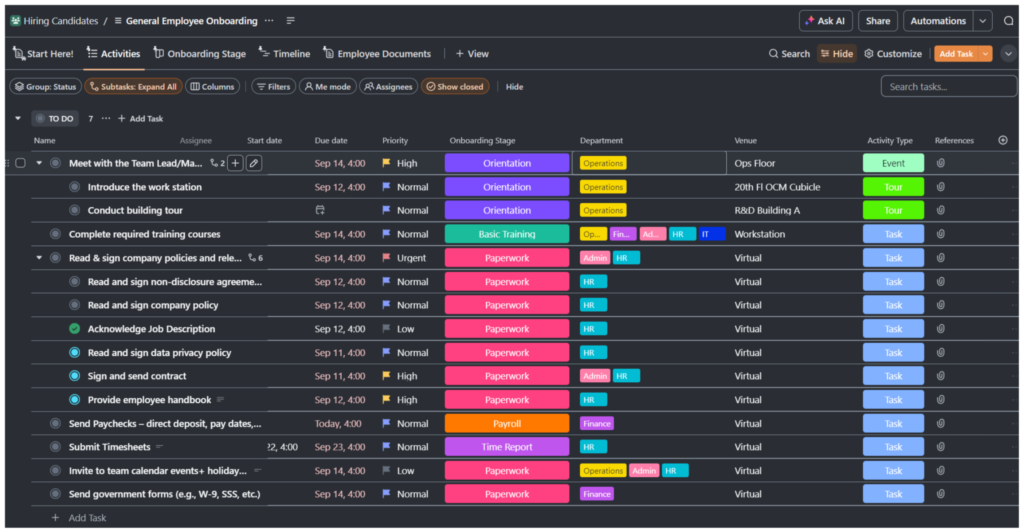
example of list view for onboarding tasks
By listing tasks that new employees, HR representatives, and the manager of the assigned department need to complete after onboarding, the risk of forgetting tasks is reduced. Additionally, you can easily track how much of the onboarding process each person has completed.
Furthermore, if you assign multiple people as task owners, such as “new employee + department manager,” it becomes immediately clear who is responsible for supporting the new employee.
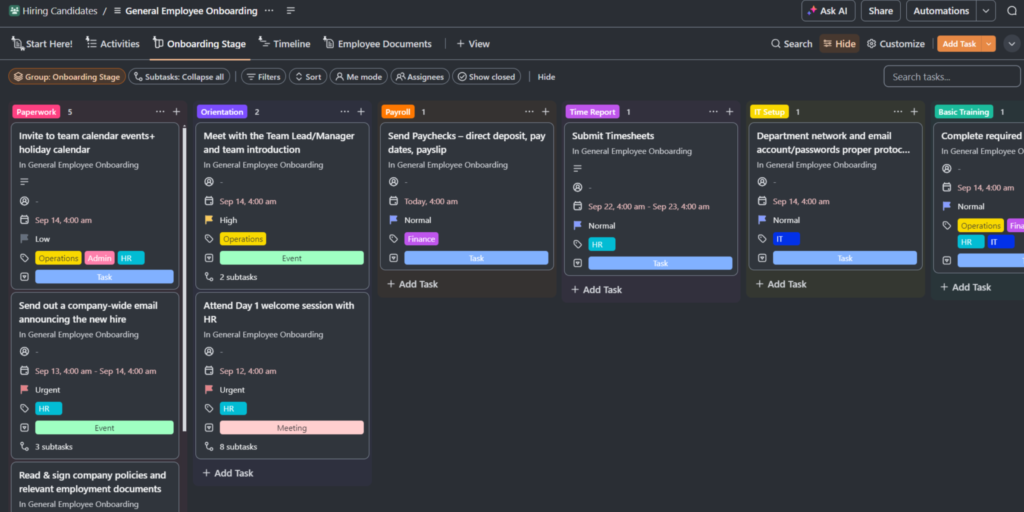
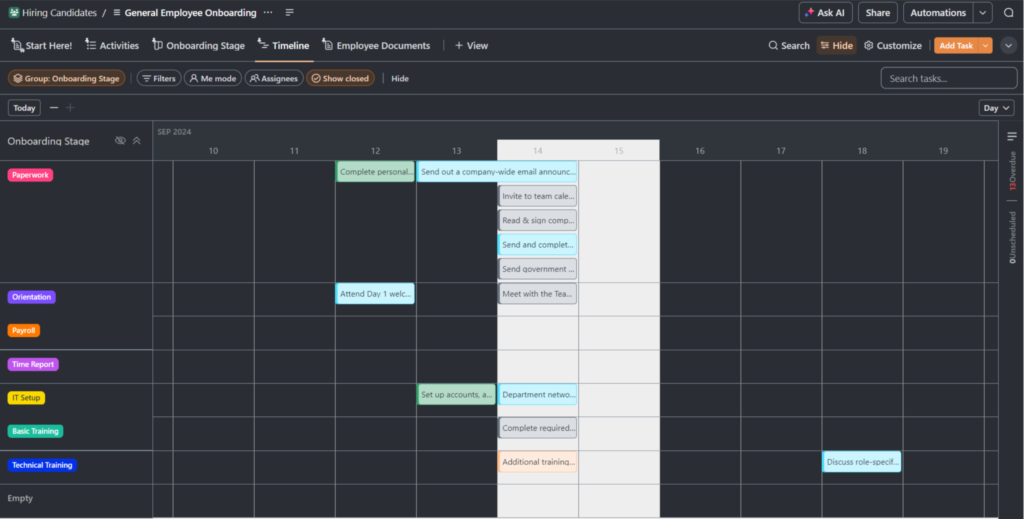
Additionally, by creating multiple views, you can organize tasks based on different perspectives, such as status, tags, or deadlines.
screen of board view. tasks are sorted by task typescreen of timeline view
By creating templates tailored to your organization, you can efficiently launch projects and assign tasks.
Additionally, some software includes document creation and management features. Integrating these docs can eliminate the need to repeatedly create or search for documents.
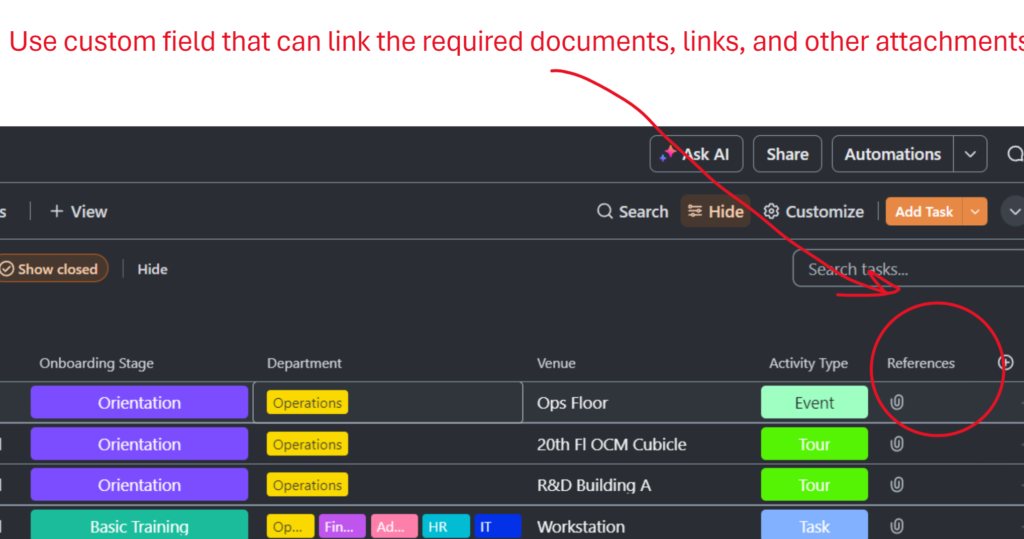
If you’re managing documents with third-party apps like Notion or Office products, it’s also a good idea to use custom fields to store file locations or links.
Effectively using custom fields can lead to increased productivity, so be sure to take advantage of them.
Using custom fields effectively can boost productivity.
Recruitment Activities
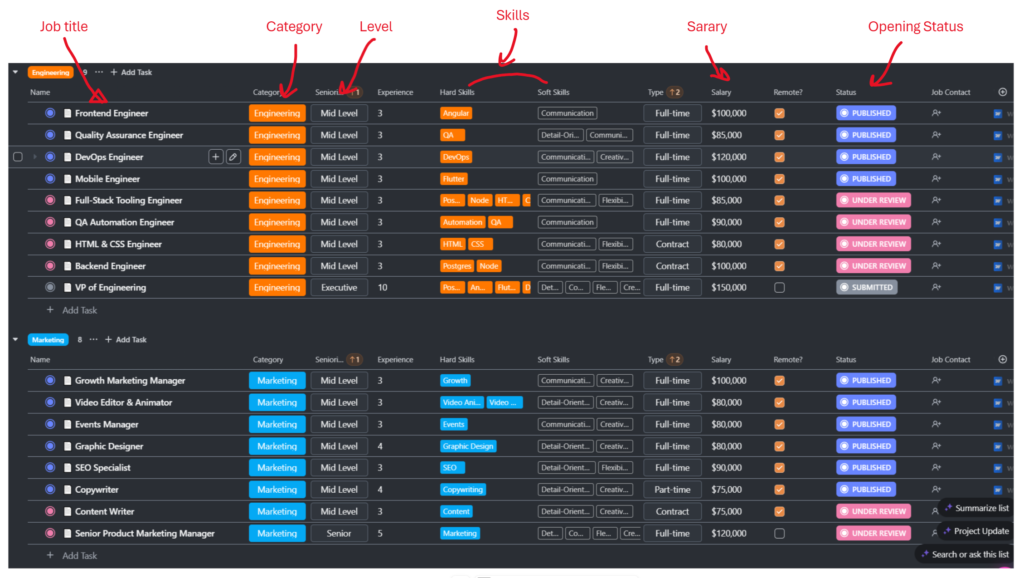
When using it for recruitment activities, you can manage job applications by position as shown below (click the image to enlarge).
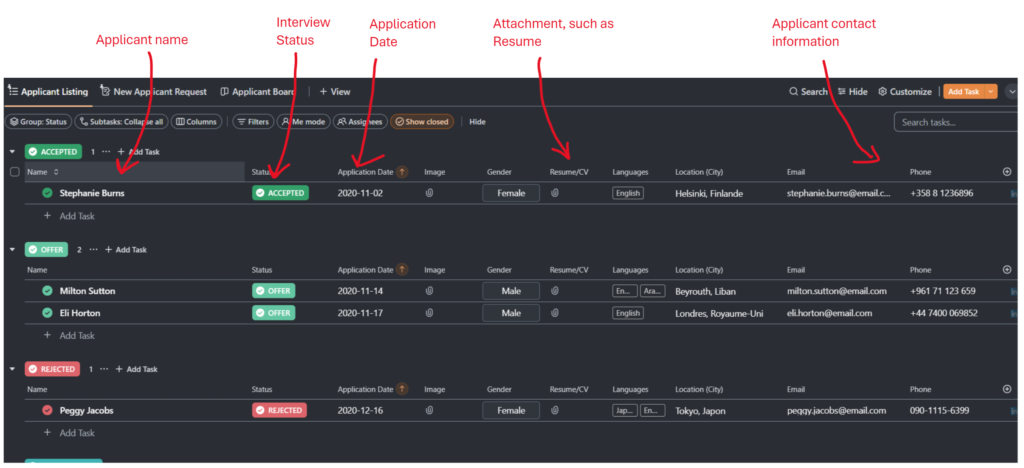
You can manage applicant information by creating items (tasks) like the ones shown below.
You can easily track the progress of interviews using custom fields, allowing you to see whether an applicant is in the initial interview stage, final selection, or has been hired.
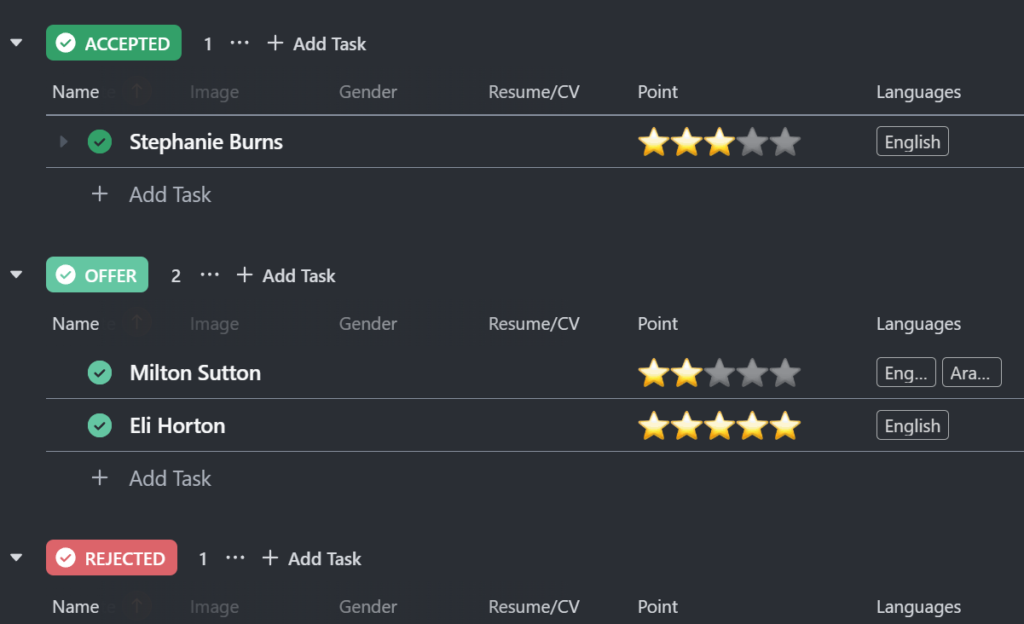
By setting up custom fields to record evaluation scores and reasons for the assessment, you can efficiently manage applicant evaluations.
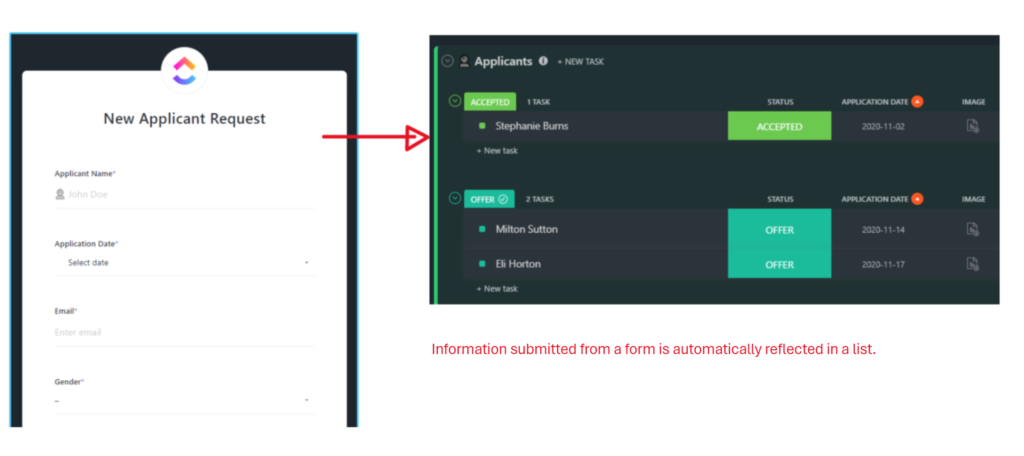
Many project management tools also offer form features.
By using these forms, the information entered is automatically registered as tasks.
For example, when applicants submit their name, phone number, and resume through a dedicated form, this data, including any attached files, is automatically reflected in the applicant list.
Managing Assets and Documents
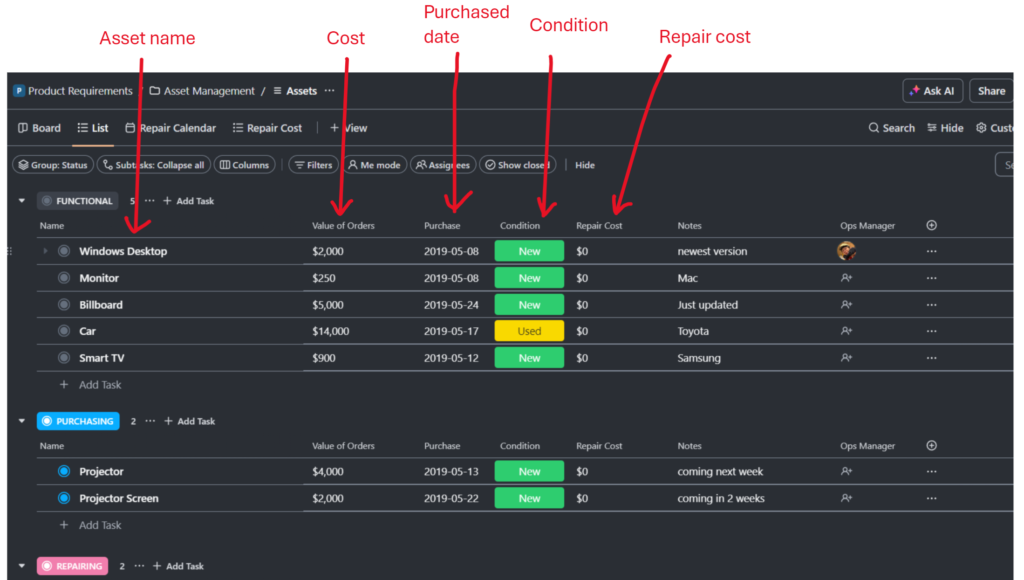
You can also manage assets, such as equipments, by setting up custom fields to track information such as purchase date, condition, and usage status, as shown below.
You can also assign responsible users to manage the equipment or assets.
I often use this type of management to organize design assets and documents. For example, when working with a brand, I use it to centralize logo files, brand guidelines, product-specific documents, and white papers.
You can use custom fields to manage file locations, such as file paths or cloud storage URLs. This eliminates the need to search for documents every time. If the storage location changes, all you need to do is update the custom field, making it easy to keep everything organized.
Using Automation Features
Most services offer automation features, which can be used to streamline various tasks such as:
Change the task owner to Person A when the task status changes to “Review”
Move a task to location “A” when its priority is updated to “High”
Notify watchers with a comment when the task start date arrives
Additionally, many services allow integration with third-party apps, which can further enhance efficiency when utilized effectively.
That’s all for today.
All the services introduced here offer free plans, so if you have the time, I recommend trying them out to explore their features before fully integrating them into your workflow.
Experienced in various creative productions such as magazine, video, and web production, advertising, sales promotion.
Currently, I am engaged in these fields as a freelance with a business name of Zatta Production.
This site introduces useful services that I've used or discovered.