Hello there👋 In this article, I’ll introduce you to ClickUp’s Dashboard and the data you can export from it.
Use this information as supplementary details when analyzing the exported CSV with BI tools, AI, or other methods.
In this article, I’ll use the Billable Report—one of the tools available on the Dashboard—as an example to show you the kind of data you can export.
Table of Contents
What Is ClickUp’s Dashboard?
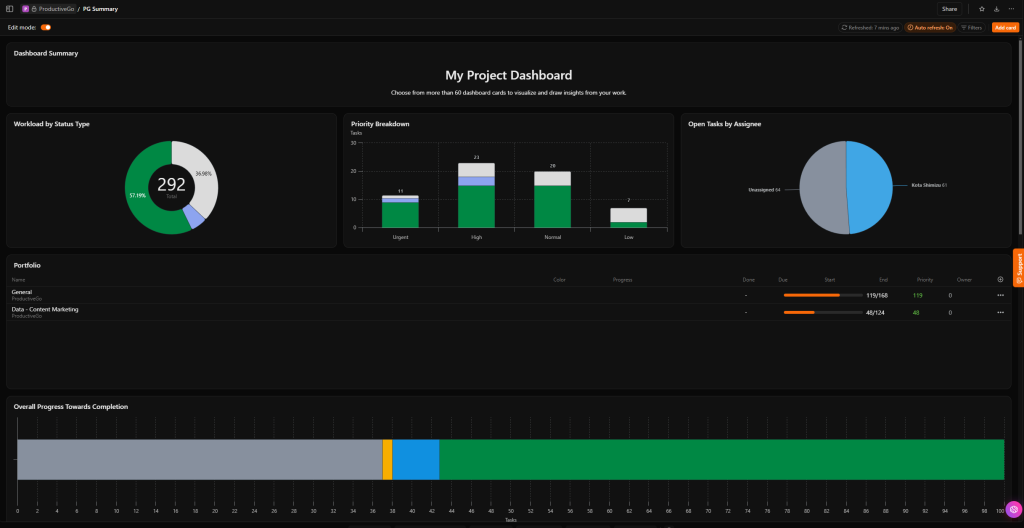
Screenshot of the ClickUp dashboard. This is an example of the ProductiveGo dashboard.A card for visually tracking task progress is also provided.
Before explaining the Billable Report, let me briefly introduce the dashboard.
Official website
ClickUp Dashboards: Visualize Your Productivity Elevate your project management with ClickUp Dashboards. Gain insights, track progress, and drive team performance. Start visualizing success now!
ClickUp offers a reporting feature called Dashboard, which lets you visually represent works. By using this feature, you can monitor and measure various aspects of your projects—such as task progress, work hours, and the volume of tasks assigned to individuals.
You can start from a pre-made template or build one from scratch.
What Are Dashboard Cards?
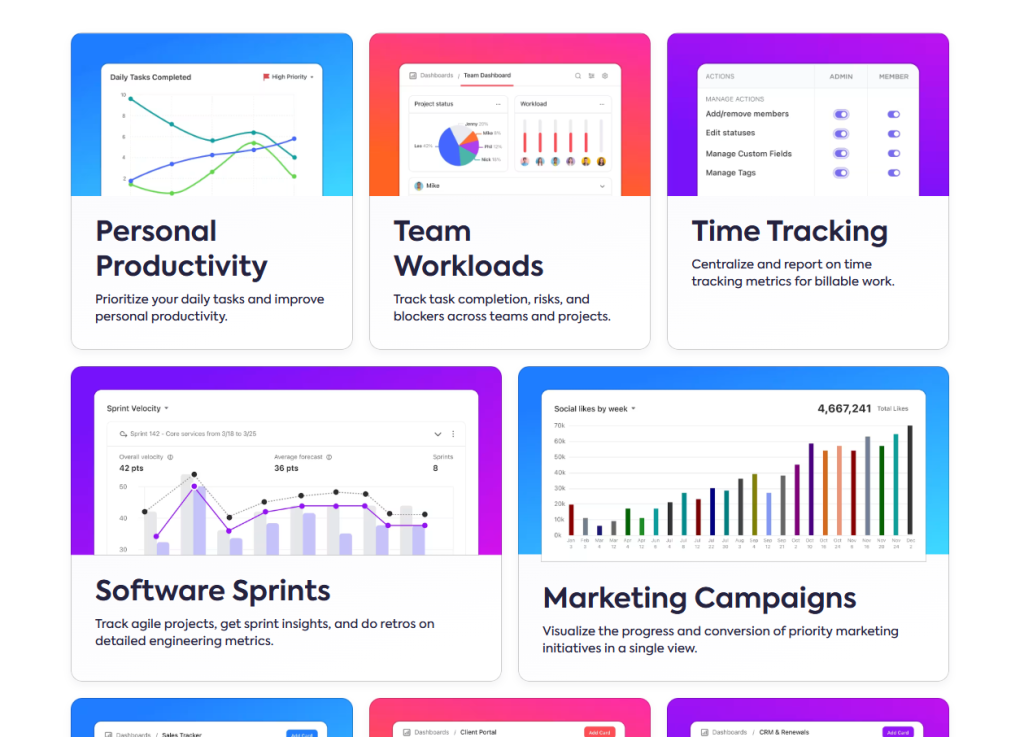
An image of the cards available on the dashboard.
Source : ClickUp Dashboards: Visualize Your Productivity (https://clickup.com/features/dashboards)
On the Dashboard, data is displayed using components known as “card.” One such card is Billable Report, which is part of the Time Tracking cards and is designed to measure and display work time.
Here’s an overview of the Time Tracking cards available:
Time Reporting: This card aggregates and displays the work time logged for tasks. You can group the data by Space, Folder, List, task, or user—and you even have the option to include subtasks.
Billable Report: It’s almost identical to Time Reporting, but it’s specialized for measuring only the work time marked as Billable during time tracking. However, filtering by whether a time entry is Billable, not Billable, or both is also possible in Time Reporting, so I can’t really see a concrete difference between the two. The appearance is the same, too. For that reason, I currently use the Billable Report to track the time spent on tasks and projects regardless of whether it’s billable or not.
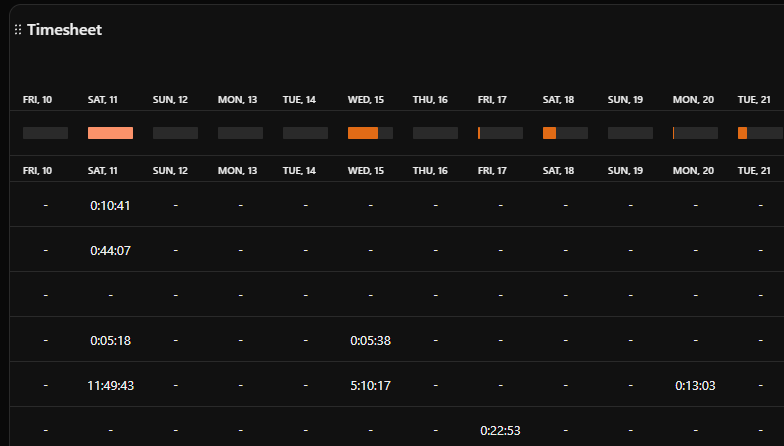
Timesheet: This card is ideal for displaying work time on a day-by-day basis.
Time Estimated (Legacy)
Time Tracked (Legacy)
Screenshots
Timesheet Screenshot: This view is handy for tracking work hours over time.Detailed Timesheet Screenshot:
See the detailed logged time for each individual task.Time Reporting Screenshot:
This view shows work hours grouped by task, list, space, or user. It looks and functions the same as the Billable Report.Detailed Time Reporting Screenshot:
View the specifics of how time is measured for individual tasks.
Explanation of Data Exported from Time Tracking Cards
With the Time Tracking cards (Time Reporting, Timesheets, Billable Report), you can export data in CSV format. This exported CSV is especially useful when you need to perform analyses that aren’t possible directly within the Dashboard.
The CSV includes additional information that might not be visible on the Dashboard cards, so it may seem a bit confusing at first. To help clarify, here’s an overview of the exported data fields (this also serves as my personal reference):
User ID: The unique identifier for the user who tracked the time.
Username: The name of the person who tracked time on the entry.
Time Entry ID: The unique ID associated with the time entry.
Description: Any description added to the time entry.
Billable: Indicates if the entry was marked as billable (TRUE) or not (FALSE).
Time Labels: Any labels applied to the time entry.
Start: The exact start time and date of the time entry in milliseconds.
Start Text: The exact start time and date of the time entry in a readable format.
Stop: The exact stop time and date of the time entry in milliseconds.
Stop Text: The exact stop time and date of the time entry in a readable format.
Time Tracked: The amount of time tracked for this entry in milliseconds.
Time Tracked Text: The exact amount of time tracked for this entry in a readable format.
Space ID: The unique identifier for the Space where the task is located.
Space Name: The name of the Space where the task is located.
Folder ID: The unique identifier for the Folder where the task is located.
Folder Name: The name of the Folder where the task is located.
List ID: The unique identifier for the List where the task is located.
List Name: The name of the List where the task is located.
Task ID: The unique identifier for the task.
Task Name: The name of the task.
Task Status: The current status of the task.
Due Date: The due date of the task in milliseconds.
Due Date Text: The due date of the task in a readable format.
Start Date: The start date of the task in milliseconds.
Start Date Text: The start date of the task in a readable format.
Task Time Estimated: The estimated time for the task in milliseconds.
Task Time Estimated Text: The estimated time for the task in a readable format.
Task Time Spent: The total time spent on the task in milliseconds.
Task Time Spent Text: The total time spent on the task in a readable format.
User Total Time Estimated: The total estimated time for all tasks assigned to the user in milliseconds.
User Total Time Estimated Text: The total estimated time for all tasks assigned to the user in a readable format.
User Total Time Tracked: The total time tracked by the user across all tasks in milliseconds.
User Total Time Tracked Text: The total time tracked by the user across all tasks in a readable format.
Tags: Any tags associated with the task.
Checklists: Any checklists included in the task.
User Period Time Spent: The time tracked by the user on the task during the selected time range in milliseconds.
User Period Time Spent Text: The time tracked by the user on the task during the selected time range in a readable format.
Date Created: The date the task was created in milliseconds.
Date Created Text: The date the task was created in a readable format.
Custom Task ID: A custom identifier for the task, if one has been set.
Parent Task ID: The unique identifier for the parent task, if the task is a subtask.
Experienced in various creative productions such as magazine, video, and web production, advertising, sales promotion.
Currently, I am engaged in these fields as a freelance with a business name of Zatta Production.
This site introduces useful services that I've used or discovered.