

What is OneDrive?
Today, I’ll introduce Microsoft’s online storage service, OneDrive.
Basic Information about OneDrive
| Product Name | OneDrive |
| Company | Microsoft |
| Official Website (Personal) | https://www.microsoft.com/en-us/microsoft-365/onedrive/online-cloud-storage |
| Official Website (Business) | https://www.microsoft.com/en-us/microsoft-365/onedrive/onedrive-for-business |
| Launch Year | 2007 |
| Free Plan | Available |
Overview
Microsoft OneDrive is a cloud storage service launched by Microsoft in 2007. Initially, it was offered under the name “SkyDrive.”
Does the name “SkyDrive” bring back some nostalgia?
With a Microsoft account, you can use OneDrive for free with 5GB of storage space.

It also offers file sharing with other users and version control features.
For paid plans, you can access the Files On-Demand feature.
Files On-Demand feature is available for both of free and paid plan.
This feature virtually displays files on your PC’s hard drive without using up storage space. Files are only downloaded when you access them.
It’s a particularly useful feature for devices with limited hard drive capacity.
What OneDrive Can Do
Overview
- File storage and synchronization across multiple devices
- File and folder sharing
- Restriction of sharing recipients
- Setting expiration dates for shared files
- Blocking downloads of shared files
- On-Demand Access (sync file information to your PC while downloading only the files you need)
- File version management
- Scanning documents with the app to create digital files
- Secure storage for confidential document copies with additional identity verification steps
- Backup of PC files
- Protection of files from ransomware attacks
Automatic Saving of Office Files
Office files are automatically saved to OneDrive by default.
It works similarly to how Google Docs files are automatically saved to Google Drive.
Accessible via Web, Desktop, and Mobile
OneDrive can be accessed through a web browser, desktop app, or mobile app.
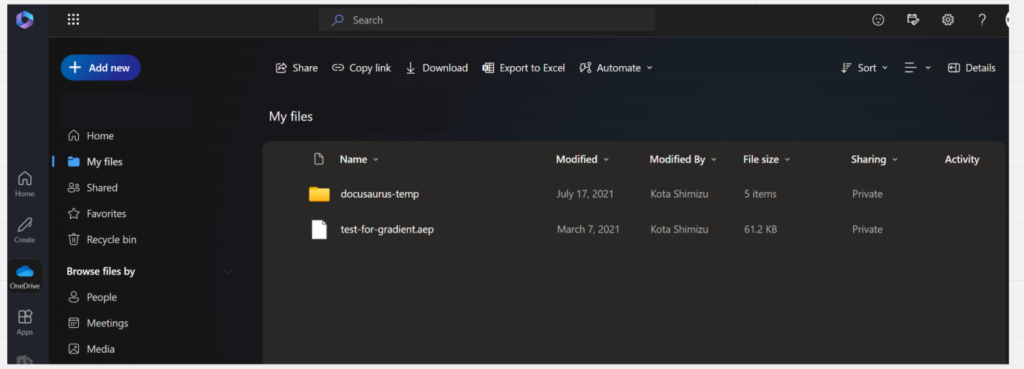
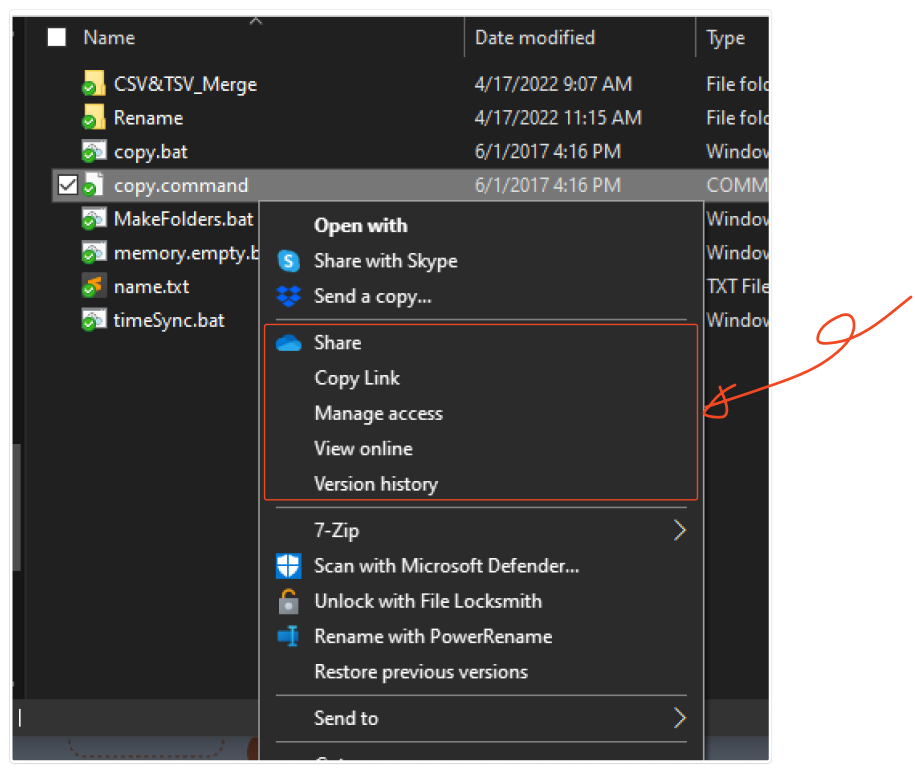
Similar to the desktop app, the web version also displays a context menu when you right-click on files or folders.

When you right-click on a file or folder, you can access various options.
Accessible via Context Menu
As mentioned earlier, OneDrive provides access to its menu through the “context menu”, which appears when you right-click on a file.
This allows you to quickly share files or check versions, as described later.
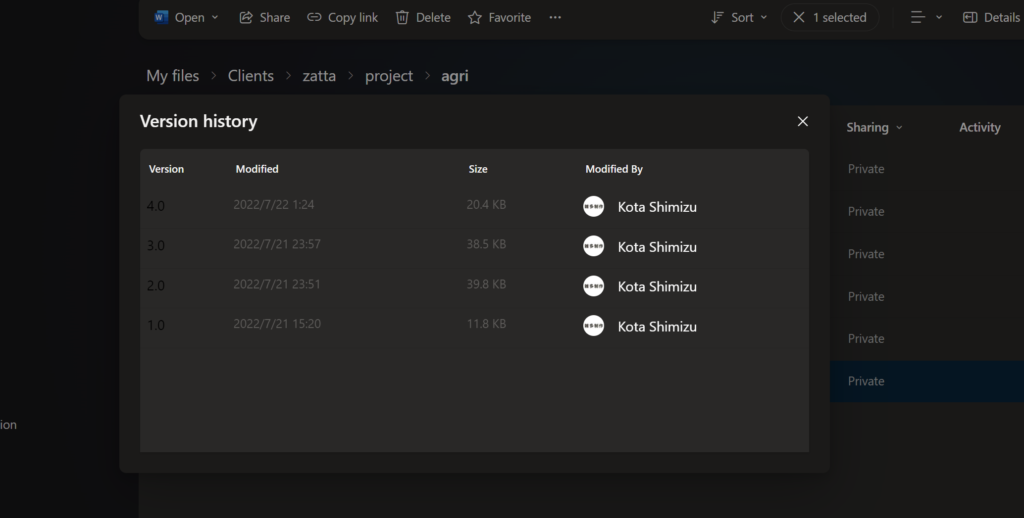
File Version Management
Files saved in OneDrive are automatically version-controlled, allowing you to revert to previous versions when needed.
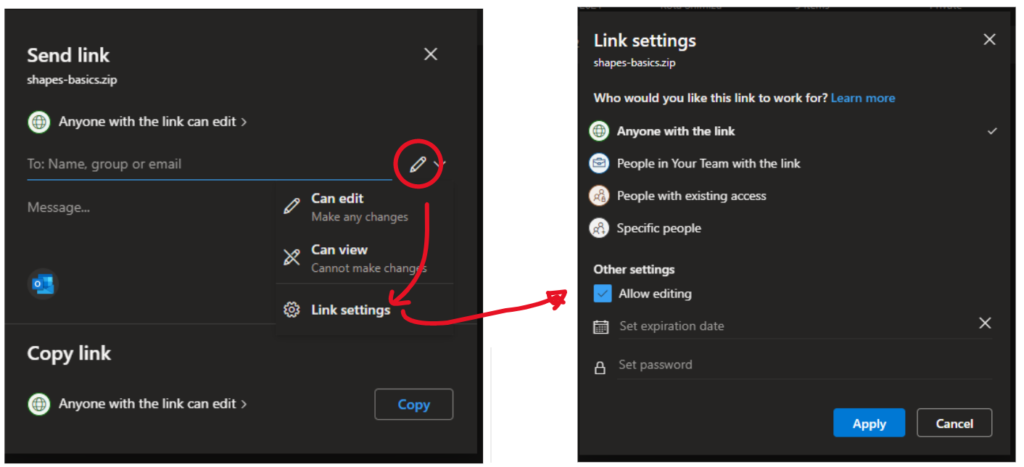
Sharing Files with Conditions
You can share files with specific people or generate public links for public access.
If you’re using OneDrive as part of a Microsoft 365 plan (rather than a standalone OneDrive plan), you can also set link expiration dates and passwords.
Collaborative Editing
Office files stored in OneDrive can be edited in real time by multiple users simultaneously. This feature enhances productivity by enabling collaborative document creation during brainstorming sessions or meetings.
Automation

You can create automation workflows using Power Automate with files and folders within OneDrive.
For example, you can set up workflows such as “Sending approval requests to an administrator for selected files” or “Notifying you when a new file is added to a specific directory”.
How I Use It
Since I have a subscription to Microsoft Office, I use OneDrive as the main backup for my PC.
While I often use Google Drive for file sharing, I rely on OneDrive’s features when I need to share files with a password or with an expiration date.
I also make use of Power Automate. For instance, I use it when preparing reports. If I need to submit photos along with a report and name each file to indicate what it is, I use Power Automate to rename the files automatically.
Following is the simple process to make an automation.
- Create folders with names that match the desired file names
- Using Power Automate, set up a workflow where, “when image files are placed in those folders, automatically rename them to the format [Parent Folder Name] + [Serial Number]”.
- Once the necessary photos are ready, move them into the corresponding folder.
This level of automation is possible because Power Automate provides a trigger that initiates actions based on activities in OneDrive (e.g., “If something happens in OneDrive, perform a specific action”).
Of course, workflows like this cannot be created for folders outside of OneDrive. This seamless integration is one of the advantages of using Microsoft products together.
Pricing
OneDrive offers different pricing and features for personal and business use, with multiple plans available for each.
For personal use, the free plan is typically sufficient. However, for businesses or sole proprietors, choosing the business plans enables integration with Office apps, making work more efficient.
For the latest pricing and features, please refer to the official website.
OneDrive for Persnal use
https://www.microsoft.com/en-us/microsoft-365/onedrive/online-cloud-storage
OneDrive for Business use
https://www.microsoft.com/en-us/microsoft-365/onedrive/onedrive-for-business


