Hi, I’m Kota, a web director in Japan.
In this article, I’m going to introduce Power Automate, an automation tool from Microsoft. This is a no-code / low-code tool that allows you to automate your work operations. Power Automate is included in Microsoft 365 subscription with limited features. Even with the restrictions, it can be fully used for work, so Microsoft 365 users are should consider to try it out.
What is Power Automate ?
Power Automate is an iPaaS (Integration Platform as a Service) service that allows you to automate your work operations by connecting various web applications.
Since it is provided by Microsoft, it is easy to integrate with Office and other Microsoft products. Of course, you can also integrate third-party applications.
There are more than 500 applications, services, and data that can be connected!
You can create automated workflows by drag-and-drop basis, or developers can also create complex automation with writing codes.
Power Automate is a low-code/no-code tool for building automation. Like Zapier, IFTTT, Make.com, Power Automate can make automation that CRM, MA (Marketing Automation), SFA (Sales Force Automation / Sales Support Tool) provide. You can also automate internal approval flows by integrating Microsoft products.
Power Automate was launched in 2016 with the name of Microsoft Flow.
Although it is a bit latecomer compared to IFTTT and Zapier, it is an easy-to-use tool with easy integration with Office products, a wide variety of templates, and a large number of third-party app integrations.
On the other hand, I feel that there are still many companies who do not use this.
If you are a Microsoft 365 “Business Standard” or higher subscription plan, you can use Power Automate, so please try it
What Power Automate can do?
Overview
Power Automate can be used in three ways: Digital Process Automation (DPA), Robotic Process Automation (RPA), and Business Process Flow (BPF).
While DPA connects multiple applications to automate the workflow, RPA makes Power Automate perform repetitive tasks that are done on decktop.
RPA requires a desktop version of the Power Automate application.
In BPF, the automation is slightly different fr
As for BPF, it is a little different from automation that connects applications, but it is automation of workflow where human is required. It may be easier to understand by thinking of it as “automating the approval process within a company”.
om the automation that connects between applications; it is the automation of workflow with human intervention. An easy example might be the automation of internal approval flows.
I will explain in the following sections.
Examples of Automation with Digital Process Automation
With Digital Process Automation(DPA) you can perform the following automation.
- Create an approval request and send a notification to Microsoft Teams when a file is added to Sharepoint
- Send a notification to Microsoft Teams when status of a task in Planner changes
- Make a schedule for a reply in Microsoft Teams
- Save Microsoft Teams messages to OneNote
- Notify on Microsoft Teams when someone mentions you by email
- Get the current weather when you press Flow button and notify you
- Notify you when there is a specific tweet on Twitter (this feature may not be available due to X’s API policy)
- Automatically reply to a specific email
In addition to this, you can also create automation like, “Retrieve some data, save it in JSON format, and store it on the server”, “Perform sentiment analysis of a Tweet and push the results to Power BI.
A wide variety of templates
Workflows can be created from scratch, or you can use a template or customize it.
Below is an example of templates.
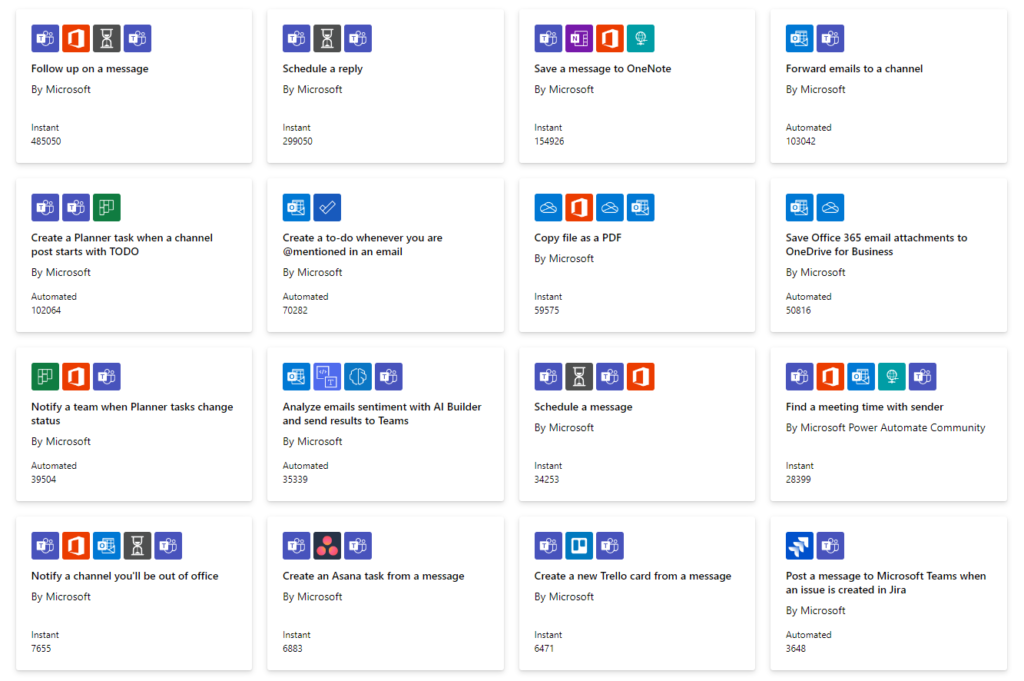
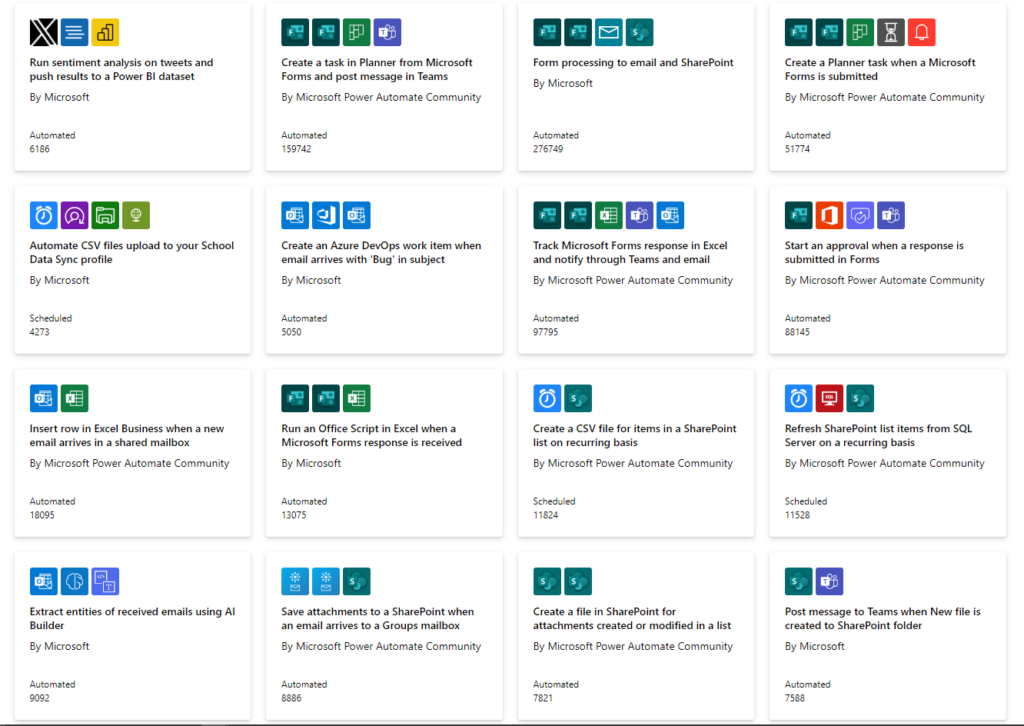
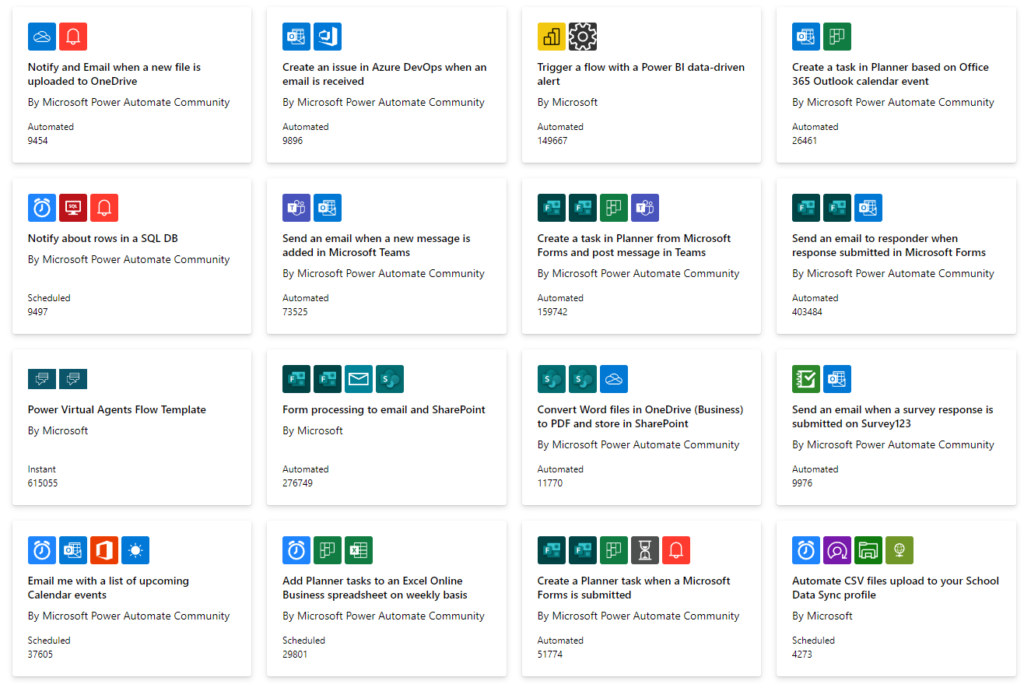
Zapier can also integrate with Microsoft products, but Power Automate offers more variety when it comes to integrating with Microsoft products.
Drag-and-drop base interface
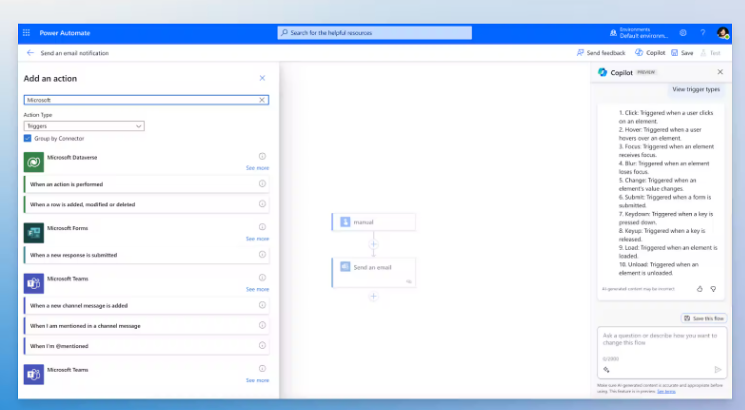
You can create workflows with an intuitive user interface.
Can be executed on a predefined schedule or at any time
You can register a schedule and make it execute repeatedly at any preferred timing, or you can make it execute at any desired timing.
Let me explain a little more about this “timing”.
Power Automate mobile app has a “button” that allows you to execute a predefined automation simply by pressing that button.
Using this feature, for example, you can do things like, “When I press the button, get the location information of the place and send it via email,” or “When I press the button, get the weather forecast of the place”.
It is also possible to create a work report program, which is “Write the time of when the button was pressed and the details of the work entered on the form into Excel”.
Examples of Automation with Robotic Process Automation
With the desktop version of Power Automate, you can have the application remember repetitive tasks on your computer and execute them with a click of a button.
You can leave tedious tasks such as copy and paste or repetitive calculations in Excel to Power Automate.
Depending on the settings, more complex operations can also be automated.
Examples of Automation with Business Process Flow
As mentioned at the beginning, Business Process Flow(BPF) is different from Power Automate’s other automations. This feature is intended to standardize business operations.
For example, when dealing with a customer, you may create rules for how to interact with the customer and have your staff respond based on those rules.
However, even after the rules are created, human errors may occur, such as forgetting to input information or forgetting to approve information.
This is where Business Process Flow comes into play. Using this feature, you can create a business flow that prevents moving on to the next step if there is an incomplete entry, or change the person in charge at the same time as moving on to the next step.
Business Process Flow is useful, for example, in the following business processes
- Sales process for a sales deal
- Customer support process
This feature differs from the normal workflow as it requires defining databases, etc.
I have yet to use this feature, but if I can utilize it well, I think I can expect a significant improvement in productivity.
This article explains the BPF in more detail.

Automation tools can be used in a wide range of situations, depending on your ideas. By checking out many templates and examples and inputting what can be done, you will get more and more ideas!