

What is Google Drive?
Hi there, this is Shimizu from Zatta Productions. In this article, I’ll be introducing Google Drive.
Many of these services are “needless to say” well-known, and explanatory articles may not even be necessary. However, I’d like to put together a summary for those who might not know about them. For those already familiar, I hope this will still provide some additional useful information.
By the way, Google Drive introduced dark mode in April 2024, so if you haven’t tried it yet, be sure to check it out!

Basic Information about Google Drive
| Product Name | Google Drive |
| Company | |
| Official Website | https://workspace.google.com/intl/en/products/drive/ |
| Official Website(Google Workspace) | https://workspace.google.com/intl/en/ |
| Launch Year | 2012 |
| Free Plan | Available |
Overview
Google Drive is a file storage and synchronization service developed and provided by Google.
Alongside Dropbox, it is one of the older online storage services and has been widely used for many years.
Google Drive allows users to store files in the cloud and synchronize them across desktop computers, tablets, and smartphones.
The service can be accessed via web browsers as well as through apps for Windows and macOS, and Android and iOS smartphones and tablets.
Additionally, by using the app, files can also be accessed offline.
In addition to file storage and synchronization, Google Drive integrates with document creation tools like Google Docs, Google Sheets, and Google Slides, collectively known as Google Docs Editors (like Microsoft Office). These are the Google’s version of Word, Excel, and PowerPoint.
Files created and edited in the Google Docs Editors are automatically saved to Google Drive.
Google Drive is free to use and offers 15GB of free storage.
However, please note that this 15GB also includes storage used by Gmail and Google Photos.
Google Photos used to offer unlimited storage, but unfortunately, that’s no longer the case.
As for my personal usage, I now use a storage solution provided by Synology, a Taiwanese company. Photos from my mobile are automatically backed up to my home storage over the internet.
I am planning to introduce this product in more detail in a future post.
What You Can Do
Overview
Google Drive offers a comprehensive range of features commonly available in most storage services.
- Synchronize and centrally manage files across multiple devices.
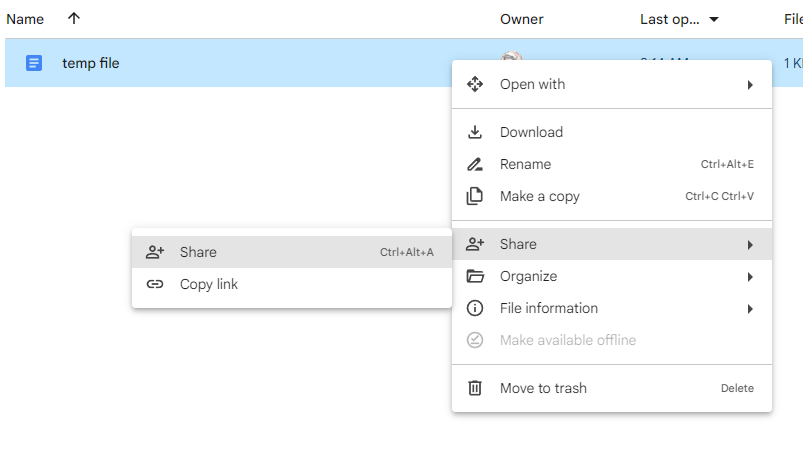
- Share folders and files with specific users who have a Google account.
- Share files publicly with an unlimited number of users (file publication).
- Set access permissions for files (“Viewer,” “Commentor,” or “Editor”).
- Utilize third-party apps (features not provided by default can often be accessed via third-party apps).
- Preview files (a wide variety of file extensions can be previewed, and third-party apps may allow viewing for unsupported formats).
- Convert Office files into Google Docs formats (e.g., convert Excel files into Google Sheets).
- File search functionality.
- Built-in protection features against malware, spam, and ransomware.
File Formats That Can Be Previewed
Google Drive supports the preview of a wide range of file formats, allowing you to check the contents without opening the files individually.
Even Adobe Photoshop and Illustrator files can be previewed. As for llustrator files, it supports multiple artboards.
- Native formats (Docs, Sheets, Slides, Forms, Drawings)
- Image files (.JPEG, .PNG, .GIF, .TIFF, .BMP, .WEBP)
- Video files (.WEBM, .MPEG4, .3GPP, .MOV, .AVI, .MPEG, .MPEGPS, .WMV, .FLV, .OGG)
- Audio formats (.MP3, .M4A, .WAV, .OGG)
- Text files (.TXT)
- Executable program files (.EXE)
- Markup/Code (.CSS, .HTML, .PHP, .C, .CPP, .H, .HPP, .JS)
- Microsoft Word (.DOC and .DOCX)
- Microsoft Excel (.XLS and .XLSX)
- Microsoft PowerPoint (.PPT and .PPTX)
- Adobe Portable Document Format (.PDF)
- Apple Pages (.PAGES)
- Adobe Illustrator (.AI)
- Adobe Photoshop (.PSD)
- Autodesk AutoCad (.DXF)
- Scalable Vector Graphics (.SVG)
- PostScript (.EPS, .PS)
- Python (.PY)
- Fonts (.TTF)
- XML Paper Specification (.XPS)
- Archive file types (.ZIP, .RAR, tar, gzip)
- .MTS files
- Raw Image formats
Use Familiar Keyboard Shortcuts
Keyboard shortcuts commonly used in PC operations, such as ” Ctrl + X to cut a file and Ctrl + V to paste,” are also available in the browser.
You can view the full list of shortcuts by clicking the gear icon in the top-right corner of the screen and selecting the “Keyboard Shortcuts” menu.
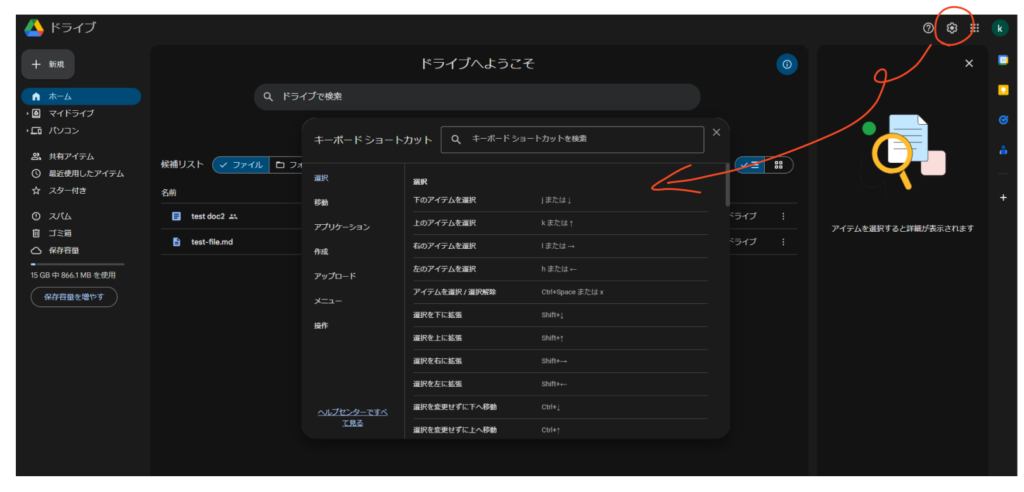
By the way, as shown in the image above, dark mode is also supported. It’s recommended for those who use their computers for extended periods or experience eye strain easily.
Dark mode was introduced in April 2024! 🎉
To switch between light mode and dark mode, click the gear icon in the top-right corner → Settings, and select the “Theme” option to toggle between modes.
Quickly Create Google Documents
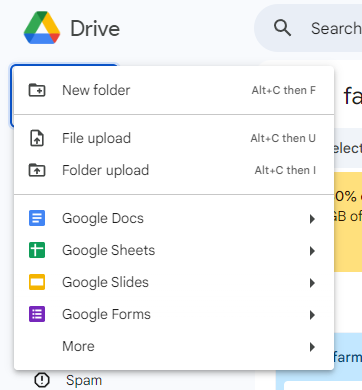
You can easily create various Google documents by clicking the “New” button in the top-left corner of the screen.
Extend Functionality with various Add-ons
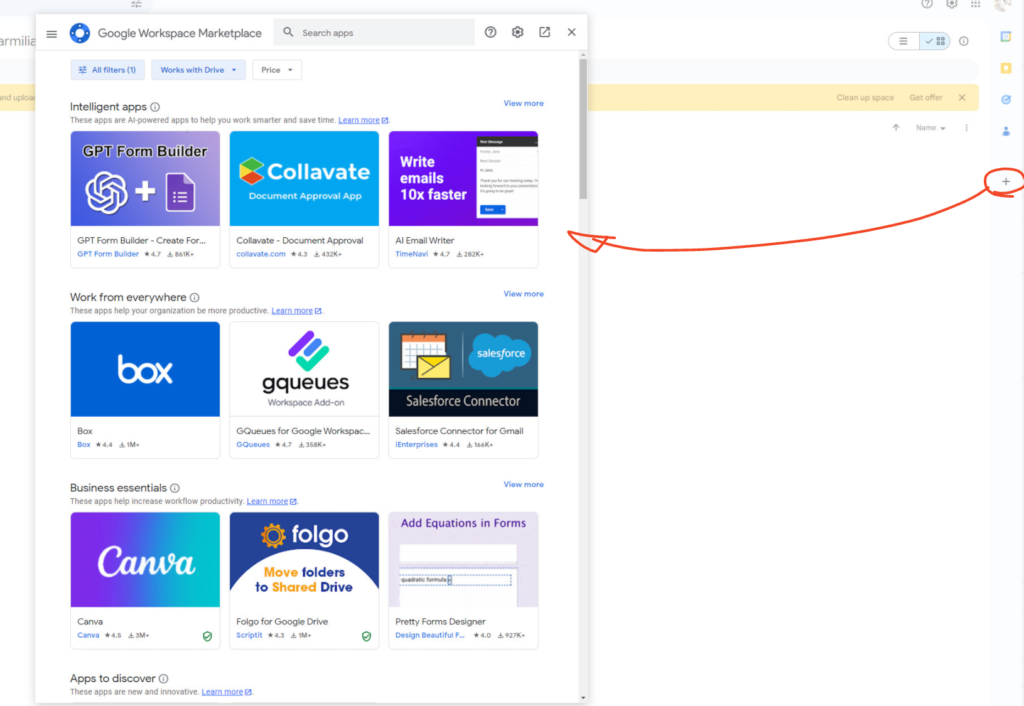
Just like Google’s Chrome browser, Google Drive allows you to add extensions called “Add-ons” to enhance its functionality.
Click the “+” icon on the right side of the screen to display a list of available Add-ons.
Recently, there are Add-ons that integrate with ChatGPT.
Sharing Files and Folders
Viewing Activity History
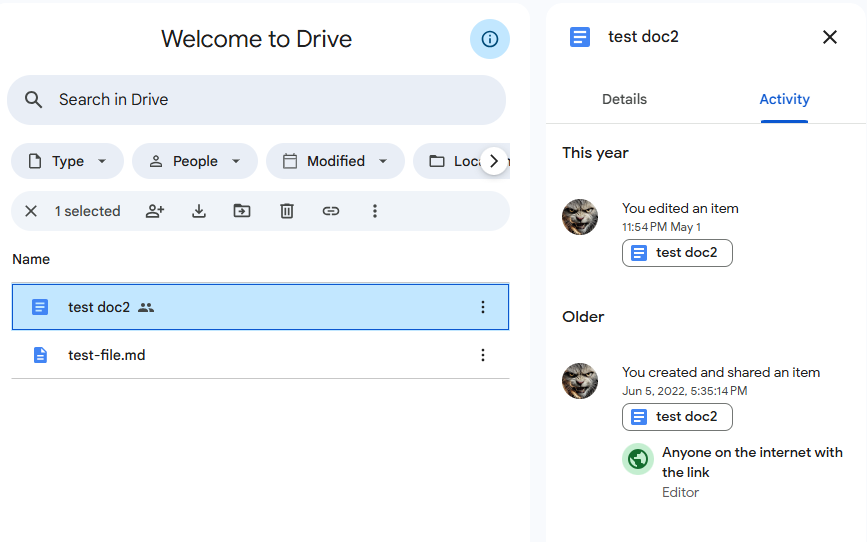
You can check the editing history of folders and files. When managed by multiple users, the history also records who did what.
Version Management
Files saved in Google Drive can be version-controlled. This means that past editing histories are stored, and you can restore them as needed.
This feature is incredibly useful, so let’s explore it in more detail.
There are two main ways to manage versions in Google Drive:
- Editing Google Documents
- Uploading non-Google files (e.g., Word or PowerPoint) with the same name to overwrite them
1. Case: Editing Google Documents
First, let’s look at the option 1, managing Google Documents versions.
In this case, it’s the version management for Google documents such as Google Docs, Google Sheets, and Google Slides.
For these documents, version history is displayed within Google Drive for each file, like explained earlier.
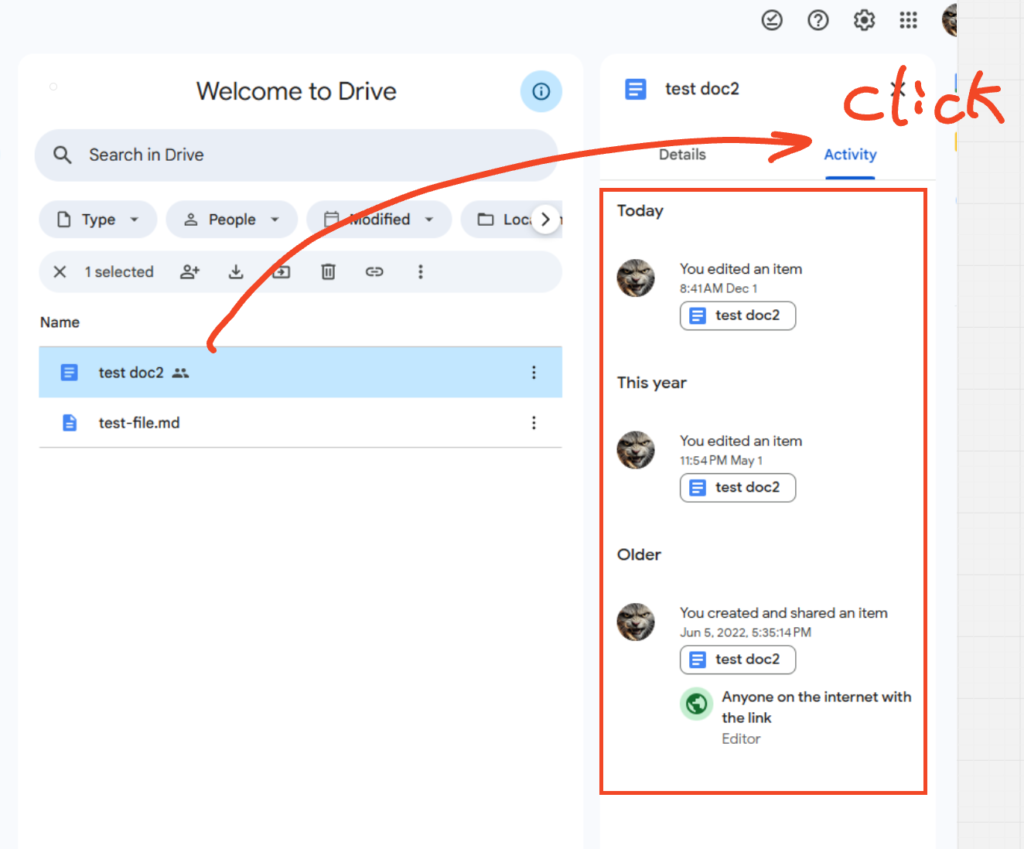
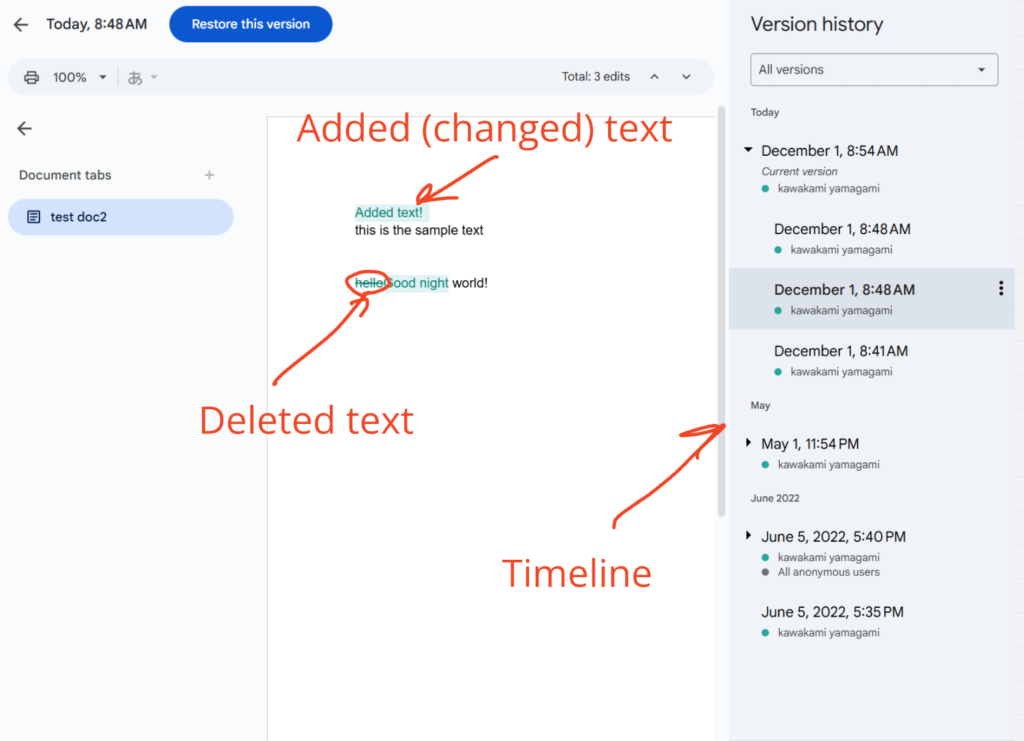
Additionally, for these files, you can see exactly what changes were made and compare the differences in the file’s editing view.
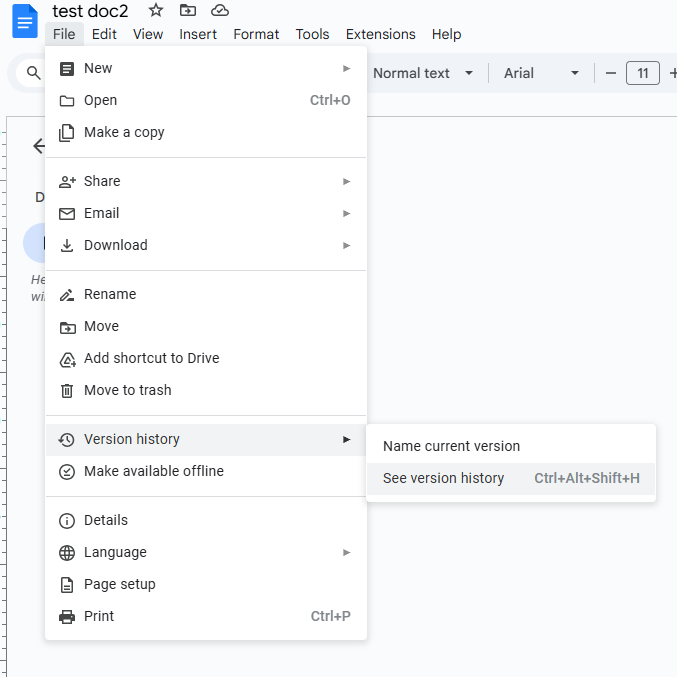
To check the exact version history, open the target file, and click File → Version History → See Version History .
Then, a timeline of edits will appear, showing what changes were made at each specific time. Please refer to the image below.
2. Overwrite non-Google files with the same name
Next is managing versions of non-Google files.
For non-Google files, when you upload a file with the same name and overwrite the existing one, a new version is automatically created.
With this method (for files other than Google Documents), you cannot view the differences at each edit point. However, you can check when changes occurred and revert to previous versions.
I will explain this with images as follows.
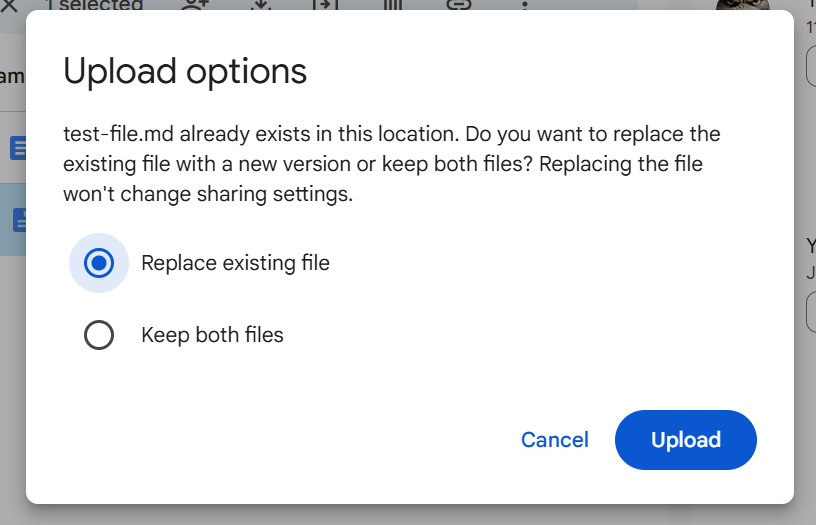
Firlst, when uploading a file with the same name, you’ll be prompted to either replace the file or keep both. Select Replace to proceed.
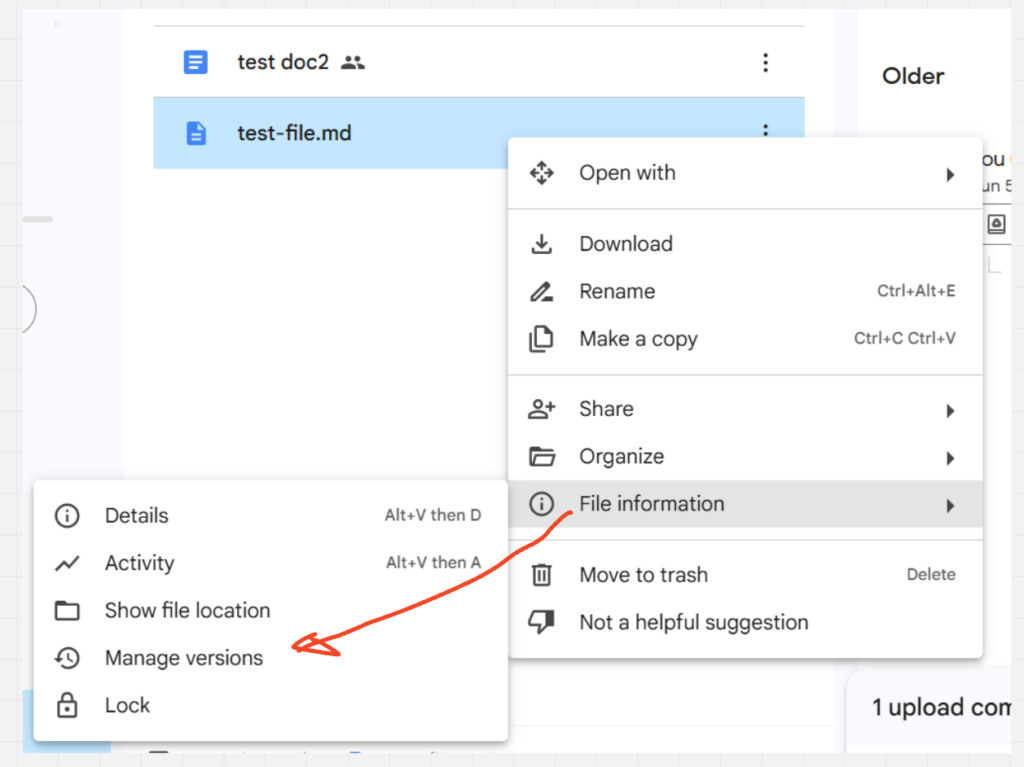
After uploading, right-click the file or click the three-dot icon on the right. Then click File Information → Manage versions to view a list of saved versions.
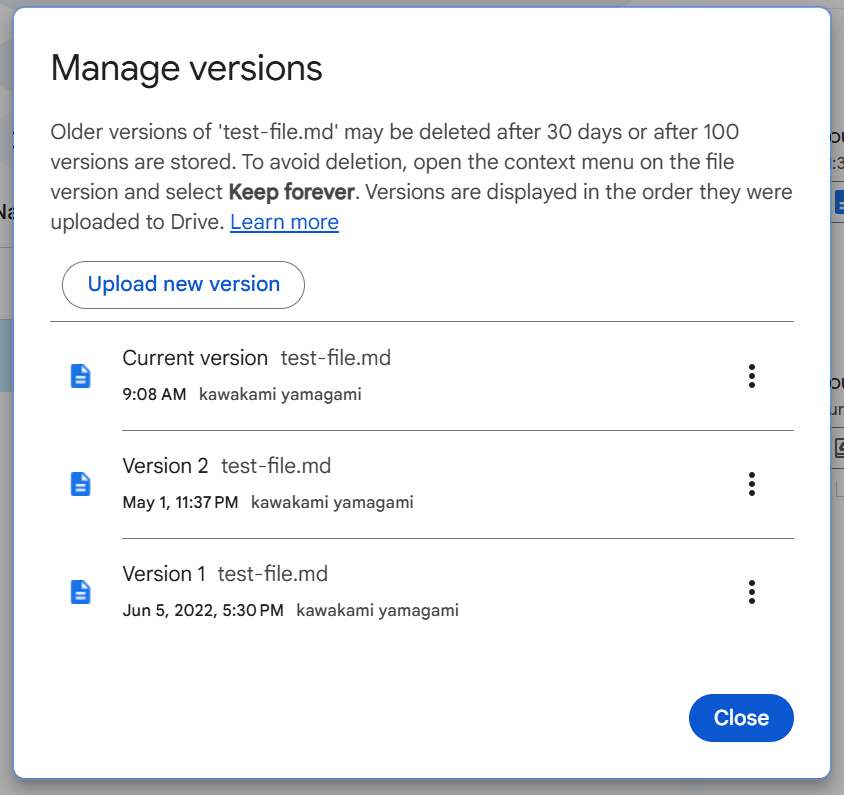
Versions are automatically deleted after 30 days or once 100 versions have been created.
Each version can be downloaded individually.
How I use
In my case, my main online storage is Microsoft 365, currently.
Therefore, I actually don’t use Google Drive for backing up all my files.
Instead, I use it for saving Google Documents such as Google Sheets and Google Forms, for temporary file sharing, and for storing data from automation tools like IFTTT.
Pricing
Google Drive is one of the services included in Google Workspace. Instead of subscribing specifically to Google Drive, you subscribe to the entire Google Workspace suite.
In terms of storage capacity, the free plan offers 15GB, the next plan, Business Starter, provides 30GB for ¥680 per month, the Business Standard plan offers 2TB for ¥1,360 per month.
For the latest information and a detailed comparison of features by pricing tier, please check the official website.


